 LootDock
Check in what arrived (Mail day)
Open a box, snap the item, and LootDock finds its order. One tap checks it in and shows its tag number.
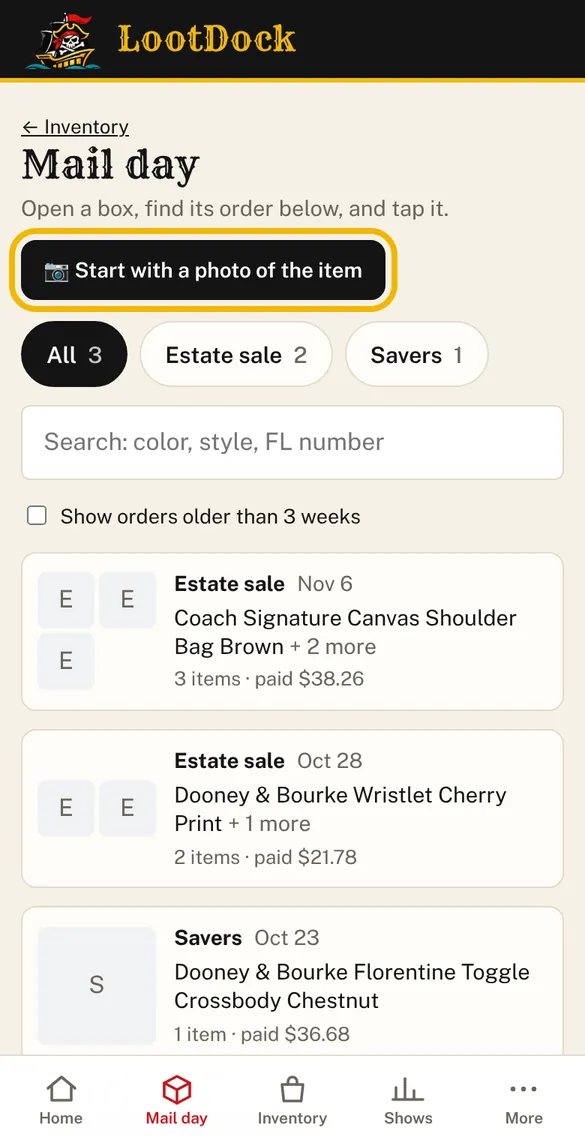
Open Mail day (on a phone it has its own tab at the bottom). It lists your orders from the last three weeks that haven't been checked in, newest first.
Open a box and tap Start with a photo of the item. Take a photo of the item on a plain background.
LootDock shows the orders that look most like it, closest first. It compares your photo with each item's photo from its receipt, so items you added from a receipt or a screenshot match best.
Tap the right one. It's checked in as on your shelf, your photo becomes its picture, and its FL number shows big: write it on the tag. Tapped the wrong one? Tap Wrong item? Undo.
Not on the list? Search by color, style or FL number, or tap A box that's not on the list to add it.
Tip: No photo handy? Every order on Mail day can be tapped straight from the list.
Tip: Bought it on Vinted? Its receipt has no photo, so turn on Get photos from Vinted in the Send to LootDock extension for Chrome and the seller's photos are added for matching.
Next: Tag your items. Still stuck? Tap the round Help button in the corner of any LootDock screen to ask us, or see all help.
