 LootDock
Add the items you buy
Log what you paid and where you bought it. Every item gets its own code for the tag and the Whatnot listing.
Open Inventory and tap Add items.
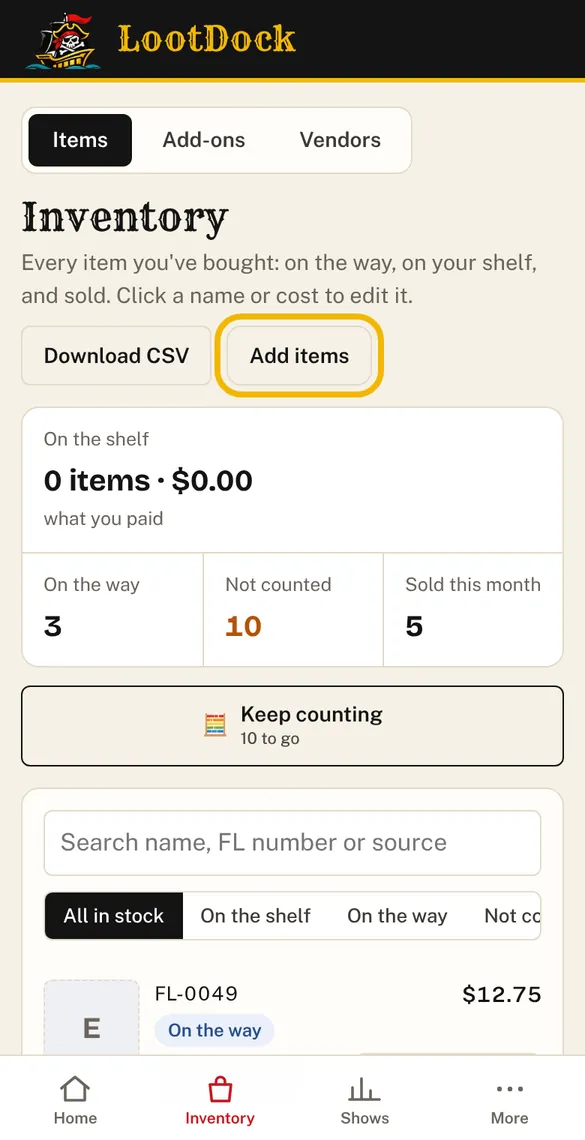
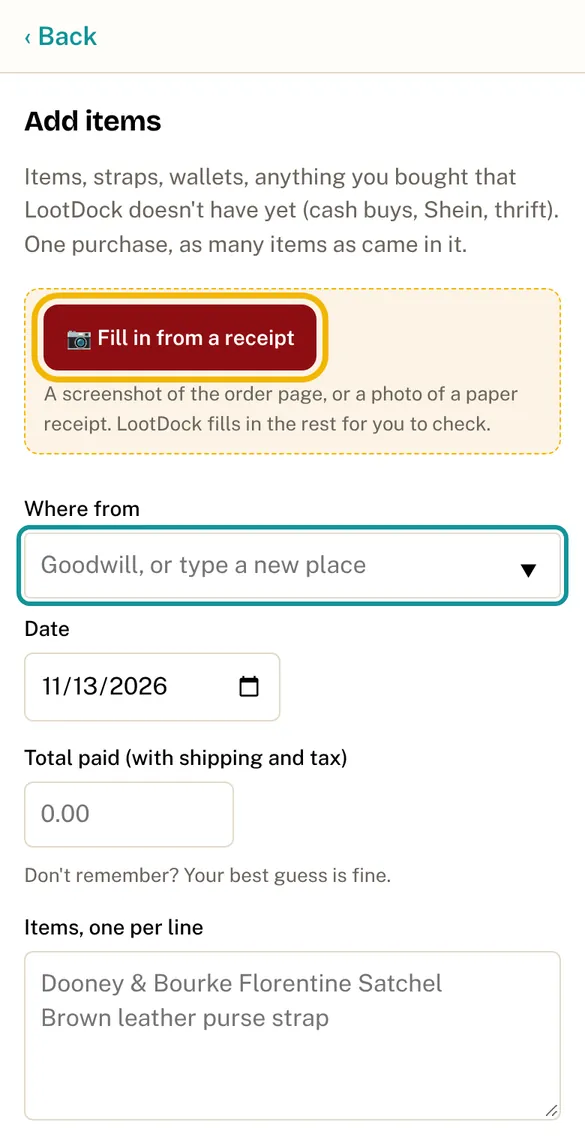
Fill in Where from (pick a place you have used before or type a new one), the date, and the total paid, including shipping and tax. Your best guess is fine if you don't remember.
Type the items you got, one per line. One purchase can hold as many items as came in it.
The total is split across the items. To set each item's cost yourself, tick Enter each cost.
Have the receipt? Tap Fill in from a receipt and pick a screenshot of the order page, or take a photo of a paper receipt. LootDock fills in the store, date, each item and its cost, with shipping and tax shared out. Check it, then carry on.
Tap Add items. Each item gets its own FL number, like FL-0042. Write it on the item's tag and put it in the Whatnot listing's SKU field, and its sale will match by itself.
Tip: Buying in a lot? Add it as one purchase with every item on its own line, so each one gets a fair share of what you paid.
Tip: Already have the items in LootDock (counted on your shelf, or checked in with no cost) and found the receipt later? In Inventory, tap Add a receipt, then Yes, match them to my items, and pick each one. They get the cost, the store, the date and the photo.
Tip: On an Android phone you can also share a screenshot straight to LootDock from any app: tap Share, then LootDock.
Next: Check in what arrived (Mail day). Still stuck? Tap the round Help button in the corner of any LootDock screen to ask us, or see all help.
